
Introduction#
“I want to take over the infrastructure without worrying about cloud bankruptcy…” “I want a more powerful and flexible development environment at home…” With this in mind, I decided to build a private cloud at home.
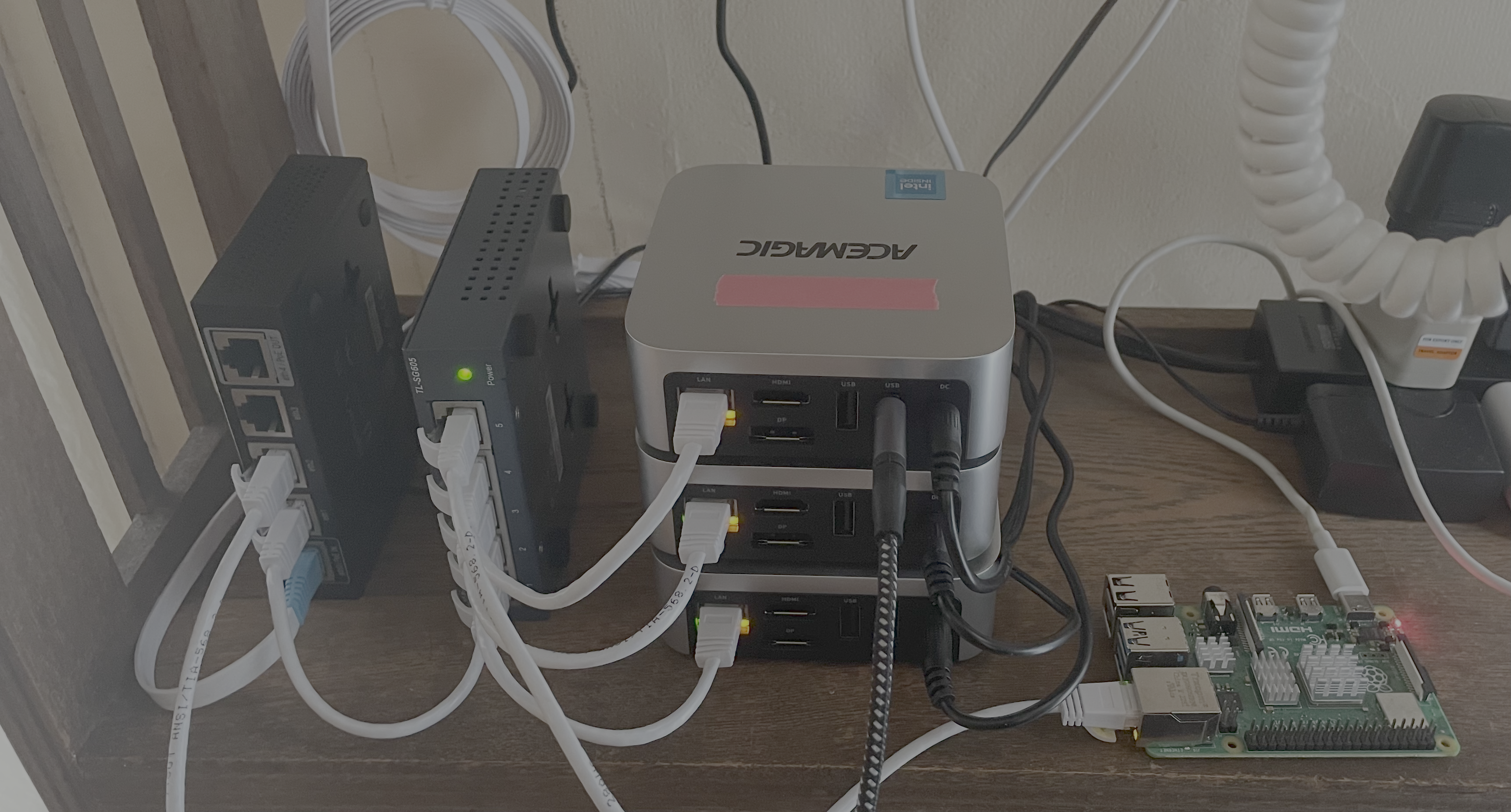
In this article, we will record the steps to build a full-fledged home cloud using three mini PCs and one Raspberry Pi, automating everything from OS provisioning to OpenStack deployment.
Configuration introduction: Equipment that supports this home cloud#
🖥️ Servers#
| Role | Equipment | Quantity | Specifications |
|---|---|---|---|
| OpenStack node (Control x1, Compute x2) | Mini PC | 3 units | CPU: Intel Processor N150 Memory: 16GB Storage: 512GB NVMe SSD NIC: 1 port |
| MAAS Server (OS provisioning) | Raspberry Pi 4 | 1 unit | 8GB model |
💡 About adding NICs#
A standard OpenStack (Kolla-Ansible) configuration requires two network interfaces on the control node: one for management and one for external connectivity. The mini PC I used this time had one NIC port, so I added one USB-connected NIC to only one for the control node.
🌐 Network equipment#
| Role | Equipment | Notes |
|---|---|---|
| Router | Ubiquiti EdgeRouter X | Uses OpenWrt firmware |
| Network switch | TP-Link TL-SG605 | Five-port managed switch |
Why this configuration?#
MAAS on Raspberry Pi: Raspberry Pi is ideal for a MAAS server that is low power and always running. By introducing MAAS, OS installation and reconfiguration of mini PCs will be completely automated, allowing servers to be treated not as physical objects, but as resources that can be operated using APIs.
Mini PC: Space-saving and recent models have sufficient performance as a virtualization platform. By preparing three devices, you can try out an OpenStack multi-node configuration.
STEP 1: Automate OS provisioning with MAAS#
First, set up MAAS, which is the heart of the home cloud, on Raspberry Pi and put the mini PCs under control.
Install MAAS on Raspberry Pi Install Ubuntu Server on the Raspberry Pi beforehand. Then log in over SSH and install MAAS.
MAAS initial settings Access the Web UI and proceed with the initial setup.
Mini PC PXE boot settings and OS deployment Next, prepare the mini PC side.
Open the BIOS/UEFI settings screen of each mini PC and enable Network Boot (PXE Boot).
Change the boot order so that PXE Boot has the highest priority.
When you save the settings and start the mini PC, it will obtain an IP address from MAAS’s DHCP server and start network booting.
After a while, the new machine should appear in the Machines tab of the MAAS web UI with a New status.
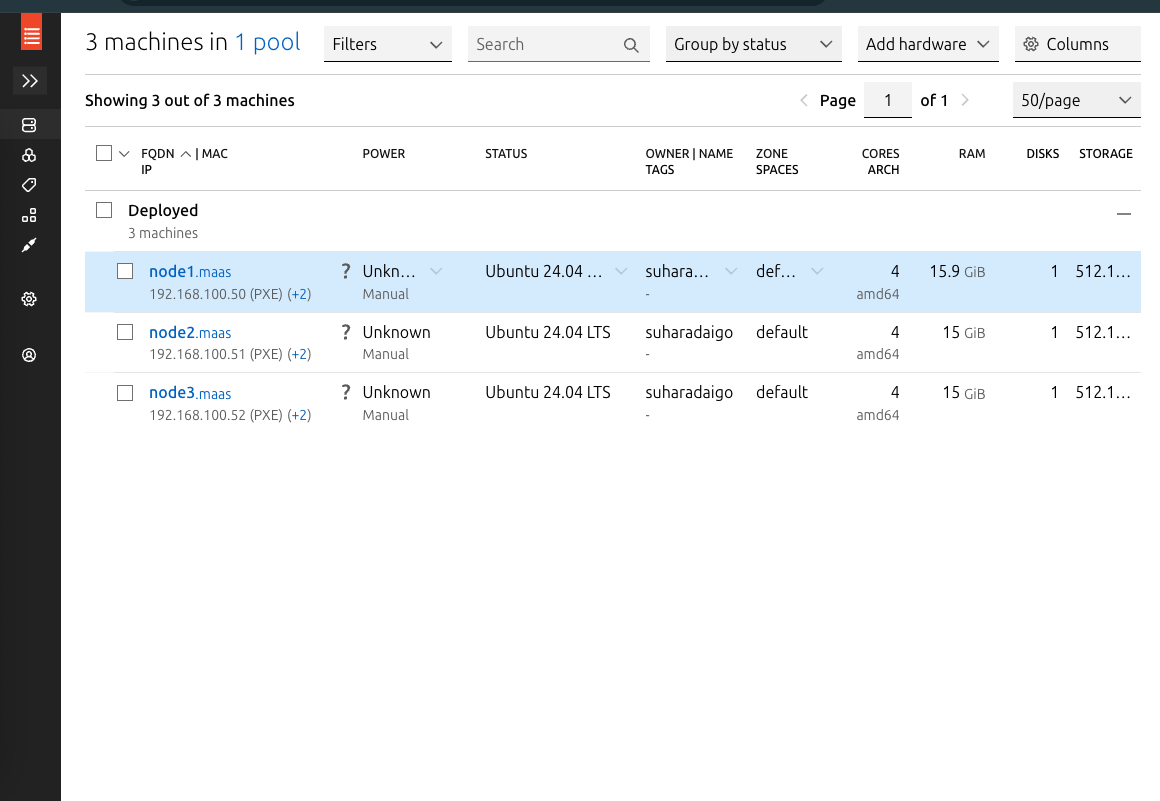
MAAS automatically collects (commissions) machine hardware information (CPU, memory, storage, etc.). Once commissioning is complete, select the machine, acquire it, and finally press the Deploy button to start deploying Ubuntu 24.04.
Perform this operation on all three mini PCs. Once the deployment is complete, you should be able to log in without a password using the SSH key you registered earlier to the IP address issued by MAAS. That’s great!
STEP 2: OpenStack multi-node construction using Kolla-Ansible#
Now that the OS is ready, we can finally start building OpenStack. We will try a multi-node configuration using Kolla-Ansible, which allows you to build a container-based OpenStack environment.
control01: control node & etc
compute01: compute node
compute02: compute node
Accessing Horizon (Dashboard)#
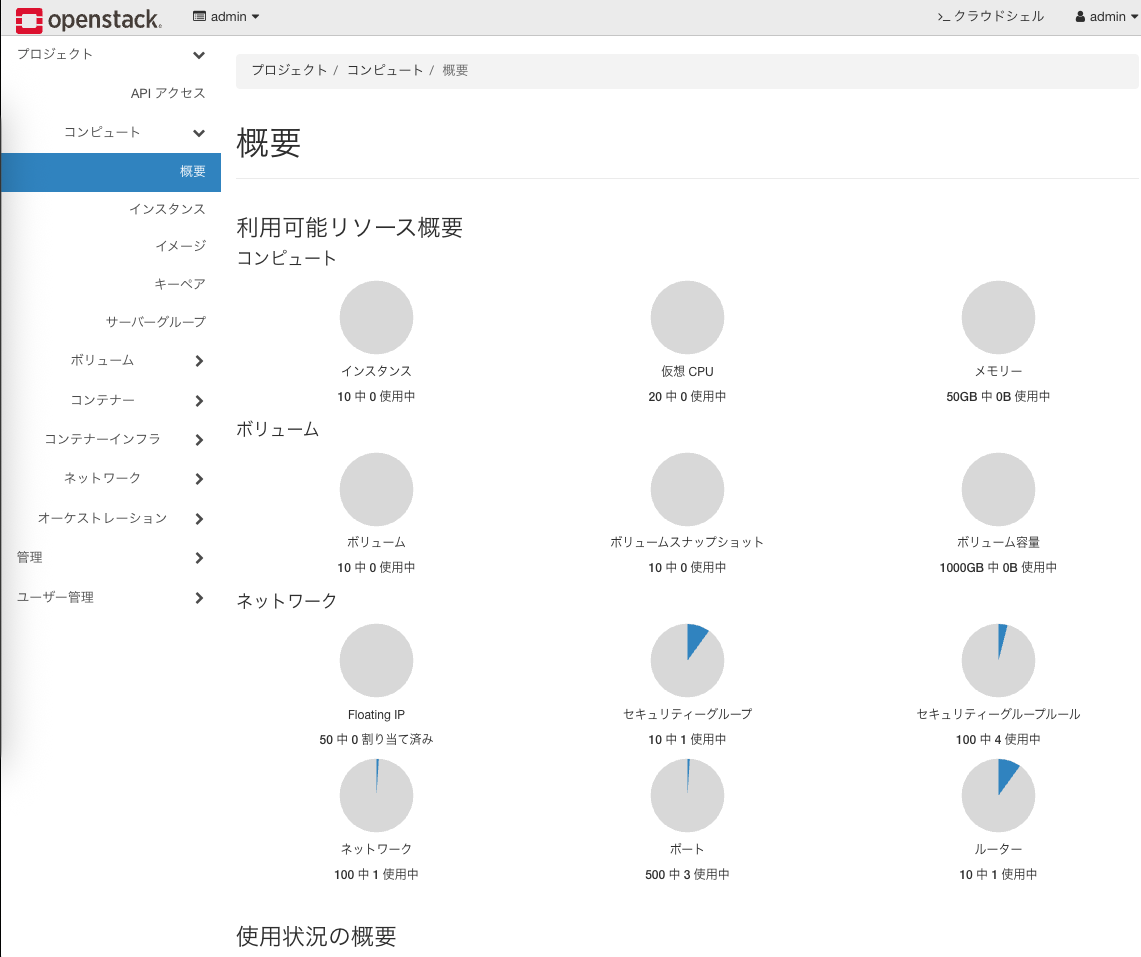
Go to http://<kolla_internal_vip_address> in your browser and you should see the OpenStack dashboard (Horizon). You can log in using keystone_admin_password listed in /etc/kolla/passwords.yml.
🚀 Future prospects: Kubernetes clusters with Magnum!#
We now have a powerful IaaS platform called OpenStack. As a next step, we aim to create an environment where we can build Kubernetes clusters on demand using Magnum, an OpenStack container orchestration engine service.
Conclusion#
This time, we introduced the steps to build a home cloud that automates everything from OS provisioning to OpenStack deployment by combining MAAS and the powerful tool Kolla-Ansible.
Setting up a physical server became surprisingly easy, and I was able to experience the fun and power of managing infrastructure in an on-premises environment with code. Why not get your own cloud with a mini PC and Raspberry Pi?
I hope this article will help someone who is trying to use the cloud at home.